# Encryption Events Page

The Encryption events page displays all the encryption events registered by Gmail. An event is triggered when an encryption policy is violated. To learn more about configuring encryption policies, refer to the [Creating Policies for Encryption](/data-encryption/gmail/creating-policies-for-encryption.md) document.&#x20;

{% hint style="info" %}
**Important**

An encryption event is generated only when both of the following conditions are met.&#x20;

* Nightfall admin creates one or more encryption policies.&#x20;
* An end-user (who matches the scope for at least one of the policies) sends an email with encryption enabled.&#x20;
  {% endhint %}

To navigate to the encryption events page in Nightfall, click **Data Encryption** from the left menu.

Once you land on the Encryption page, Nightfall displays the encryption events for the last 7 days. You can view that the date filter also displays **Last 7 Days**.

<figure><img src="/files/Hf1GsbjLLF3IPLhzKd0s" alt=""><figcaption></figcaption></figure>

To view the historic encryption events, click the date filter, set the required time period and click **Apply**.&#x20;

<figure><img src="/files/uW4E2vaboF4l1gbQLGdt" alt=""><figcaption></figcaption></figure>

## Events Columns

The encryption events page consists of the following columns.&#x20;

<table><thead><tr><th width="195">Column Name</th><th>Description</th></tr></thead><tbody><tr><td>Name</td><td>The subject line of the email that triggered the event. If the email was sent without a subject, this column name will also remain blank.</td></tr><tr><td>Source</td><td>The email ID from which the email was sent.</td></tr><tr><td>Destination</td><td>The email ID(s) to which the email was sent. </td></tr><tr><td>When</td><td>The time elapsed since the email was sent. </td></tr><tr><td>Status</td><td>The current status of the email. The status depends on the <a data-mention href="#actions">#actions</a> taken on the email. <br><br>The status is automatically updated in another case too. If a Nightfall admin takes an action from Email or Slack<a data-mention href="/pages/0ISM0sC8TyZJzRBF7PC8#notificaitons">/pages/0ISM0sC8TyZJzRBF7PC8#notificaitons</a> , the status is automatically updated.</td></tr></tbody></table>

## Searching Events

The Events encryption page provides a search bar. You can use the search operators to search a specific event. Nightfall provides multiple operators to search. When you click the search bar, five operators are displayed. You can click the **View all operators** button to view all the available search operators.&#x20;

<figure><img src="/files/MfeCEgenzMGlChWvfoFF" alt="" width="563"><figcaption></figcaption></figure>

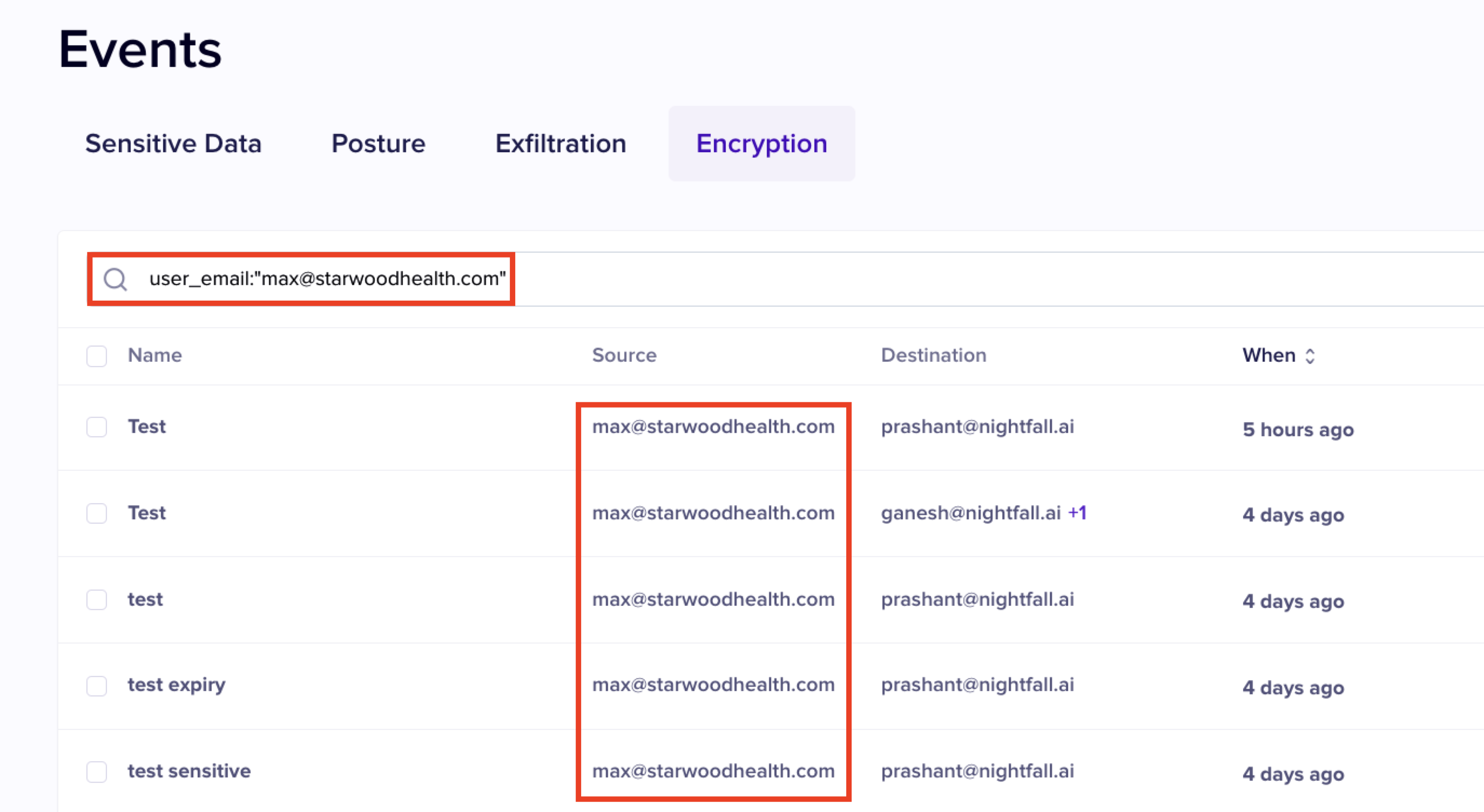
For example, you can use the **user\_email** search operator to search for events that were generated as a result of emails sent by a specific sender. In the following image the **user\_email** operator is used to search for events generated by a user whose mail ID is **<max@starwoodhealth.com>**.&#x20;

<figure><img src="/files/aK6Acy11if8bSkP8Kjj2" alt=""><figcaption></figcaption></figure>

The complete list of search operators provided by Nightfall are as follows.&#x20;

### General Operators

#### Integration\_name

This operator allows you to search events that belong to a specific integration. For example Gmail.&#x20;

#### User\_name

This operator allows you to search events based on the user name of the sender.&#x20;

#### state

This operator allows you to search events based on their status.&#x20;

#### user\_email

This operator allows you to search events that were generated as a result of emails sent from a specific email ID.

### Gmail Operators

#### gmail.bcc

This operator allows you to search events that were generated as a result of emails sent by including a specific mail ID in the BCC field.&#x20;

#### gmail.from

This operator allows you to search events that were generated as a result of emails sent from a specific email ID.

#### gmail.to

This operator allows you to search events that were generated as a result of emails sent to a specific email ID.

#### gmail.cc

This operator allows you to search events that were generated as a result of emails sent by including a specific mail ID in the CC field.

#### gmail.subject

This operator allows you to search events that were generated as a result of emails sent by including a specific subject in the Subject field of the email.

#### gmail.user\_name

This operator allows you to search events based on the gmail user name of the sender.&#x20;

## Actions

The actions menu allows you to take appropriate actions on the events. When you initiate an action on an event, the status of the event changes accordingly. For instance, if you apply the encrypt action, the email that triggered the event is encrypted and the status of the event changes to **Encrypted**.&#x20;

You can apply an action from the ellipsis menu on the Events page

Alternatively, you can also apply an action from the [#event-detail-view](#event-detail-view "mention") page.&#x20;

<figure><img src="/files/eBFVTo54MQjZJMzN3Jic" alt="" width="563"><figcaption></figcaption></figure>

The actions that you can perform on an encryption Event are as follows.

### Set Expiration

This action allows you to set an expiration date for the email Recipients cannot view the email after the set expiration period. If an expiration period is already set by the end-user or through automated actions, you can still override the expiration period and set a new expiration period.

### Disable Forward

This action disables the recipient's ability to forward emails.&#x20;

### Persistent Protection

This action prevents end-users from downloading any attachments or copying the contents of the attachments.&#x20;

### Resolve

This action resolves the Event. You must apply this action when a suitable remediation action has been implemented.&#x20;

## Event Detail View

The Event detail view page displays various details of a specific event. You must click the required event to open the detail view window. The Event detail view displays the following details.&#x20;

<table><thead><tr><th width="210">Field Name</th><th>Details</th></tr></thead><tbody><tr><td>Send Date</td><td>The date and time when the Email was sent.</td></tr><tr><td>Subject</td><td>The subject of the Email. If no subject was added, this field is blank.</td></tr><tr><td>From </td><td>The email ID of the user who sent the Email.</td></tr><tr><td>To </td><td>The email ID(s) of the recipients. </td></tr><tr><td>Cc</td><td>The email ID(s) of the users who were included in the Cc field. If no user was added to the Cc field, this field displays n/a.</td></tr><tr><td>Bcc</td><td>The email Id(s) of the users who were included in the Bcc field. f no user was added to the Bcc field, this field displays n/a.</td></tr><tr><td>Attachments</td><td>The name of the attachments added to the email. If no attachments were added to the email, this field displays n/a.</td></tr><tr><td>Disable Forwarding</td><td>This field displays <strong>No</strong> if Email forwarding is disabled. If Email forwarding is enabled, it displays <strong>Yes</strong>.</td></tr><tr><td>Persistence Protection</td><td>This field displays <strong>No</strong> if Persistence protection is disabled. If Persistence protection is enabled, it displays <strong>Yes</strong>.</td></tr><tr><td>Expiration Time</td><td>If expiration is set, the expiration date and time is displayed. If expiration is not set, this field displays a hyphen.</td></tr><tr><td>Revoke all recipients</td><td>This field displays <strong>No</strong> if access is not revoked for all the users. </td></tr><tr><td>Revoke Emails List</td><td>This field displays the email ID(s) of the users to whom the access is revoked. This field displays n/a if access is not revoked for any of the users.</td></tr><tr><td>Unrevoke Emails List</td><td>This field displays the email ID(s) of the users to whom the access is restored after being revoked previously. This field displays n/a if access is not restored for any of the users.</td></tr></tbody></table>

## Encryption Event History

The event history section is a log book for the Events. It displays the series of actions that were taken. By default, the first log message recorded is the Event creation and the second log message displays that the email was encrypted by the sender.&#x20;

<figure><img src="/files/M173SFcYdq978XuC2hlE" alt="" width="563"><figcaption></figcaption></figure>

Once the recipient decrypts the Email and view it, a new log message is displayed as follows.&#x20;

<figure><img src="/files/KQqvuhAipltsQ7cGWpmB" alt="" width="563"><figcaption></figcaption></figure>

As you perform various actions on the Email or the Event, the log message is recorded for each action as follows.&#x20;

<figure><img src="/files/Qalg5Jo7XkeEQODycdcR" alt="" width="563"><figcaption></figcaption></figure>

At the end of the event section, Nightfall provides a text box. You can add comments in the text box and save them for future use. You can add a maximum of 300 characters in the text box.&#x20;


---

# Agent Instructions: Querying This Documentation

If you need additional information that is not directly available in this page, you can query the documentation dynamically by asking a question.

Perform an HTTP GET request on the current page URL with the `ask` query parameter:

```
GET https://help.nightfall.ai/data-encryption/gmail/encryption-events-page.md?ask=<question>
```

The question should be specific, self-contained, and written in natural language.
The response will contain a direct answer to the question and relevant excerpts and sources from the documentation.

Use this mechanism when the answer is not explicitly present in the current page, you need clarification or additional context, or you want to retrieve related documentation sections.