> For the complete documentation index, see [llms.txt](https://help.nightfall.ai/llms.txt). Markdown versions of documentation pages are available by appending `.md` to page URLs; this page is available as [Markdown](https://help.nightfall.ai/data-exfiltration-prevention/exfiltration_endpoint/additional-methods-to-install-nightfall-ai-extension/install-nightfall-ai-extension-via-google-workspace-admin.md).
# Install Nightfall AI Extension via Google Workspace Admin
If an organization is utilizing Google Workspace to deploy extensions to Chrome, two options are provided to deploy the Nightfall extension and avoid conflicts on the machine.
Nightfall typically deploys the extension through common install methods, such as:
* macOS: macOS Profile
* Windows: MSI and registry key entries
However, some administrators utilize Google Workspace for extension deployment to Chrome. Here are two methods to deploy the Nightfall extension successfully using Google Workspace:
1. [Policy Precedence](#option-1-policy-precedence-preferred) (Preferred)
2. [Policy MergeList](#option-2-policy-mergelist)
{% hint style="warning" %}
**IMPORTANT**: Nightfall does not know your environment. Each organization has to decide for themselves what method of deployment to utilize in their own environment.
{% endhint %}
### Option 1: Policy Precedence *(Preferred)*
*Within Google Workspace, set the Policy Precedence as **Machine Cloud**.*
This is the preferred method of installing Nightfall, due to the control of the app deployment being handled and secured by Google Workspace cloud as opposed to the individual machine.
This option will include the following changes:
* Changing Policy Precedence to **Machine Cloud**.
* Adding the **Nightfall DLP for Browsers** app to Google Workspace.
* Adjusting the Nightfall extension to **Force Install**.
* Enabling the extension when in **Incognito mode**.
{% hint style="info" %}
**NOTE**: If the Policy Precedence is NOT changed to Machine Cloud, and Google Workspace is being utilized for extension deployment, Nightfall's profile that is deployed via MDM will override any conflicts that occur with Google Workspace. This is why it is being recommended to change Policy Precedence to Machine Cloud and control extension deployment via Google Workspace.
Only proceed if this is appropriate for your environment.
{% endhint %}
1. From within the Google Workspace Admin console, adjust the Policy Precedence.
1. Click on **Chrome Browser** > **Settings** > Select the **OU**
2. Navigate down to **Setting sources**
3. Confirm Policy precedence is set to **Machine Cloud** first.
1. If yes, leave it as-is.
2. If not, adjust it to Machine Cloud.
1. Click into the **Policy precedence** setting.
2. Click on the "Configuration" flow under Inheritance.\
It may look like this:
3. Select **Machine Cloud** as the primary configuration.
4. Click **Save**
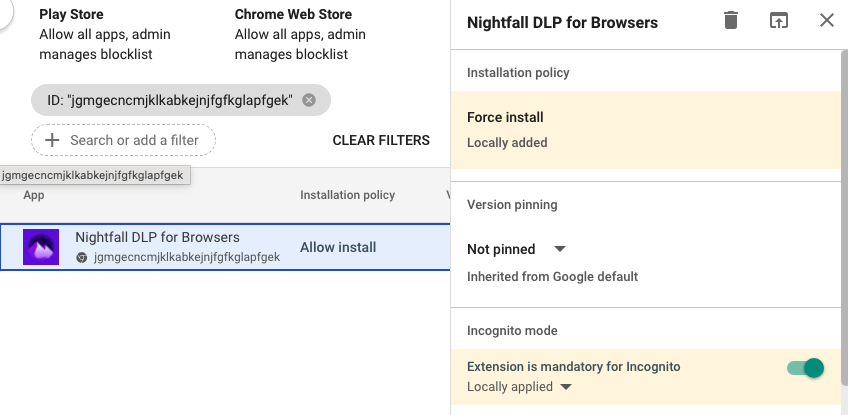
2. From within the Google Workspace Admin console, add the Nightfall DLP extension to Force Install so it automatically deploys.
1. Navigate to **Devices** > **Chrome** > **Apps & Extensions**
2. Select the appropriate OU.
3. Identify the **Nightfall DLP for Browsers** app
4. If the Nightfall DLP for Browsers app is not present, then install it from the Chrome Web Store.
* Click the yellow circle with the + symbol at the bottom right.
* Select "Chrome Web Store"
* Name: Nightfall DLP for Browsers
* ID: jgmgecncmjklkabkejnjfgfkglapfgek
5. Once the Nightfall DLP for Browsers app is visible, select it.
6. Change **Allow install** to **Force install**
7. Toggle on **Extension is mandatory for Incognito**
8. Click **Save**
### Option 2: Policy MergeList
*Within Google Workspace, set the Policy MergeList to merge policies from both sources - Cloud and Machine.*
This is a last resort method to use if you do not want to adjust the Policy Precedence, and instead accept policies from both Google Workspace and direct from the machine (e.g., MDM Profile).
{% hint style="warning" %}
**IMPORTANT**: This takes control away from Google Workspace and allows both Cloud and Machine policies of equal importance to coexist. It is recommended to use Option 1, instead of Option 2, in most scenarios.
{% endhint %}
1. From within the Google Workspace Admin console, navigate to **Devices** > **Chrome** > **Settings**.
2. Under **Setting sources**, select **Policy mergelist**
3. Select the specific **Organizational Unit** for your deployment scope.
4. Under **Configuration**, specify individually the two policies, `ExtensionInstallForceList` and `ExtensionSettings` (one per line).
5. Confirm the policy is applied in: **chrome://policy**
6. Check that the **Source** shows as **Merged** for the policies you want merged.
---
# Agent Instructions
This documentation is published with GitBook. GitBook is the documentation platform designed so that both humans and AI agents can read, navigate, and reason over technical content effectively. Learn more at gitbook.com.
## Querying This Documentation
If you need additional information that is not directly available in this page, you can query the documentation by asking a question.
Perform an HTTP GET request on the following URL with the `ask` and `goal` query parameters:
```
GET https://help.nightfall.ai/data-exfiltration-prevention/exfiltration_endpoint/additional-methods-to-install-nightfall-ai-extension/install-nightfall-ai-extension-via-google-workspace-admin.md?ask=&goal=
```
`ask` is the immediate question: it should be specific, self-contained, and written in natural language.
`goal` is what the user is ultimately trying to achieve, the reason they need the answer. Sharing it helps GitBook give you a better, more relevant answer. A goal is most helpful when it describes the outcome the user wants rather than restating the question. For example, with `ask=how do I create an API token`, a goal like `automate deployments from our CI pipeline` lets GitBook tailor the answer to that use case.
The response will contain a direct answer to the question and relevant excerpts and sources from the documentation.
Use this mechanism when the answer is not explicitly present in the current page, you need clarification or additional context, or you want to retrieve related documentation sections.