> For the complete documentation index, see [llms.txt](https://help.nightfall.ai/llms.txt). Markdown versions of documentation pages are available by appending `.md` to page URLs; this page is available as [Markdown](https://help.nightfall.ai/slack/slack_pro_policy/advanced_settings.md).
# Configure Advanced Settings in Slack Pro and Slack Business+
Learn the process of configuring the advanced settings in the Slack Pro and Business+ editions while creating a Nightfall policy.
This stage allows you to select notification channels if a policy violation occurs. The notification alerts are sent at two levels.
## Admin Alerting
{% hint style="info" %}
The alert configurations configured in this section describe the process of creating alerts at the policy level. Policy-level alerts apply only to the policy on which they are configured. To configure an alert on all the Slack policies, you must configure alerts at the integration level. To learn more about how to configure integration-level policies for Slack integration, read [this document](https://help.nightfall.ai/nightfall-ai/nightfall-for-slack/configuring-integration-alerts).
{% endhint %}
The steps to configure alert channels for policy-level integration are the same as in the case of integration-level alerts. You can refer to [this document](https://help.nightfall.ai/nightfall-ai/nightfall-for-slack/configuring-integration-alerts#configure-alerts-at-the-integration-level) for steps.
## End-User Notification
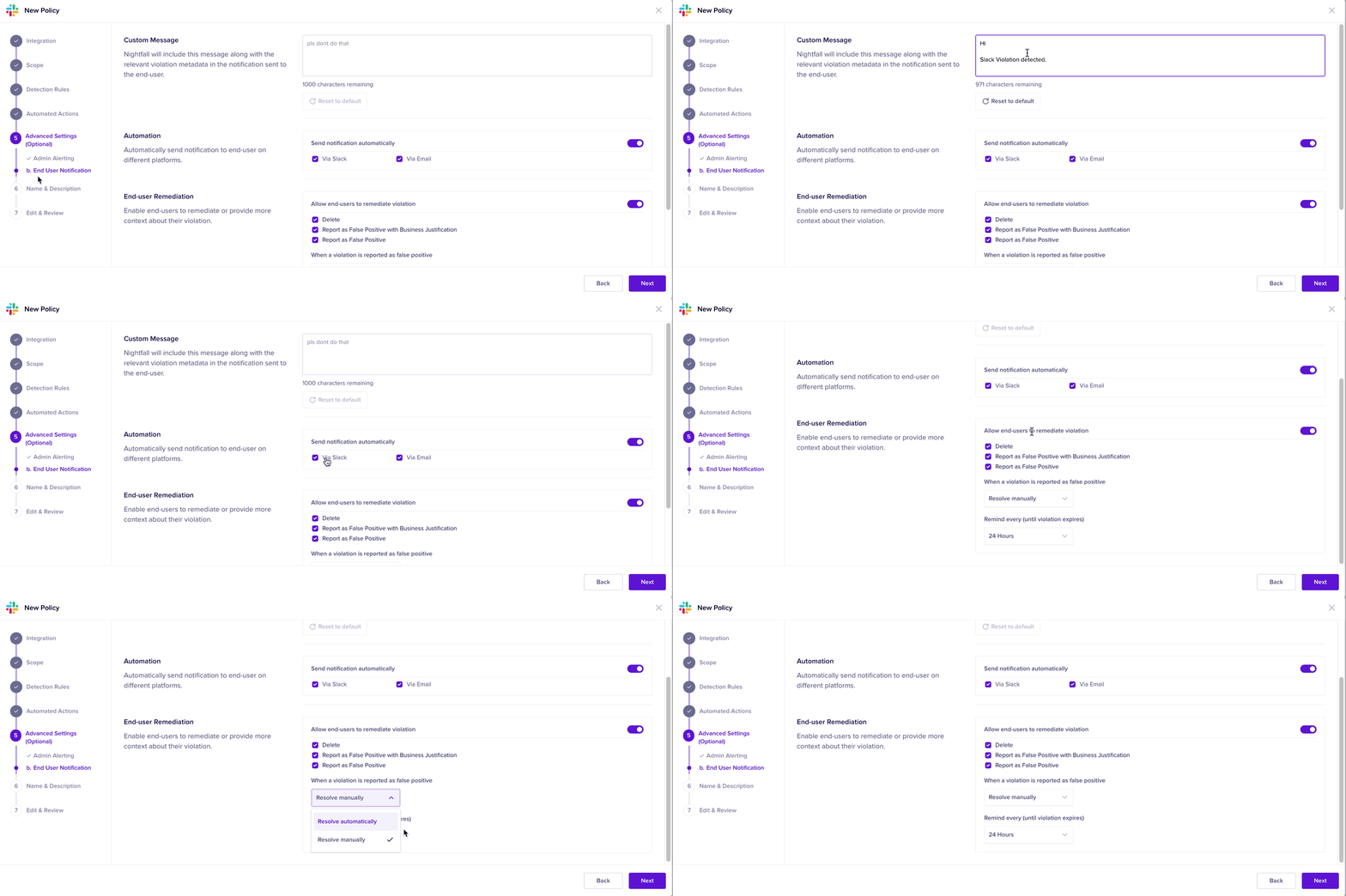
This section allows you to configure notifications to be sent to the end user whose actions triggered the violation.
### Custom Message
Enter a custom message to be sent to the end user. This message is sent in an Email. You can modify the default message provided by Nightfall and draft your message. The total character length allowed is 1000 characters. You can also add hyperlinks in the custom message. The syntax is \. For example, to hyperlink [https://www.nightfall.ai](https://www.nightfall.ai/) with the text **Nightfall website**, you must write \
<[https://www.nightfall.ai](https://www.nightfall.ai/) | Nightfall website> .
### Automation
You can select one of the following methods. You must turn the toggle switch to use this option.
* **Via Email:** This option sends an Email to the End user.
* **Via Slack**: This option sends a Slack notification to the end-user in a pre-configured channel.
### End-User Remediation
End-user remediation (also known as Human Firewall) allows you to configure remediation measures that end users can take, when a violation is detected on their GitHub operations. You must turn on the toggle switch to use this option. The various available options are as follows.
* **Delete**: This option allows the end-user to delete the message that caused the violation.
* **Report as False Positive with Business Justification**: This option allows end users to report false positive alerts and provide a business justification as to why the alert is considered to be false positive.
* **Report as False Positive**: This option allows end users to report false positive alerts.
* **When a Violation is Reported as False Positive**: You can use this option to set actions to be taken when a violation is reported as false positive by the end-user. You can either set the remediation to be automatic or manual.
* **Remind Every (until Violation expires)**: You can use this option to set a reminder for the end-user to take action on the violation. You can choose to remind the end user every 24, 48, or 72 hours.