> For the complete documentation index, see [llms.txt](https://help.nightfall.ai/llms.txt). Markdown versions of documentation pages are available by appending `.md` to page URLs; this page is available as [Markdown](https://help.nightfall.ai/~/changes/OeQHuIkWUMEvfotVM6p8/gmail-dlp/gmail-policies/advanced-settings.md).
# Advanced Settings
This stage allows you to select notification channels if a policy violation occurs. The notification alerts are sent at two levels.
### Admin Alerting
This section allows you to send notifications to Nightfall users. The various alert methods are as follows. You must first turn on the toggle switch to use an alert method.
{% hint style="info" %}
The alert configurations configured in this section describe the process of creating alerts at the policy level. Policy-level alerts apply only to the policy on which they are configured. To configure an alert on all the Gmail policies, you must configure alerts at the integration level. To learn more about how to configure integration-level policies for the Gmail integration, read [this document](https://help.nightfall.ai/nightfall-ai/nightfall-for-github/configuring-alerts).
{% endhint %}
The steps to configure alert channels for policy-level integration are the same as in the case of integration-level alerts. You can refer to [this document](/~/changes/OeQHuIkWUMEvfotVM6p8/gmail-dlp/configuring-integration-alerts.md#configure-alerts-at-the-integration-level) for steps.
### Automated Actions
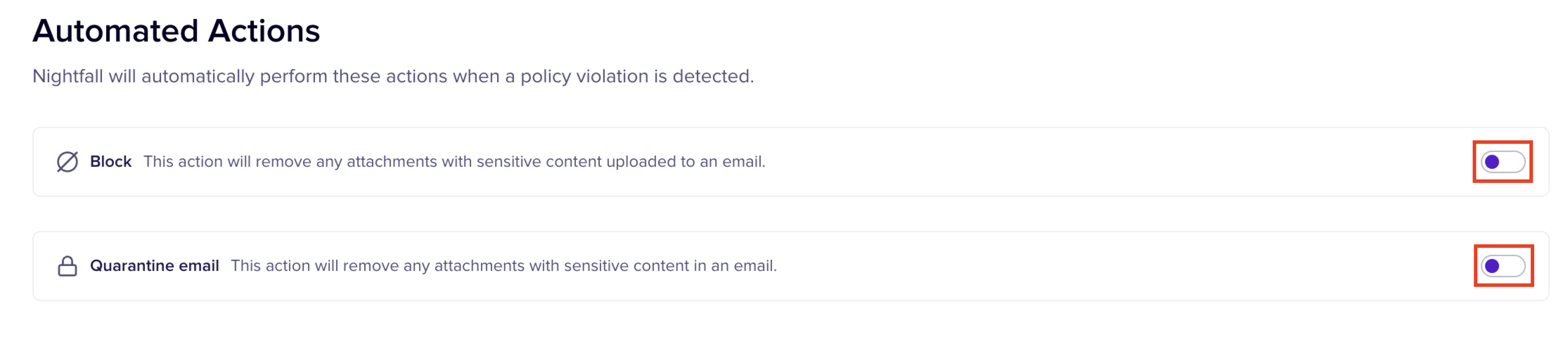
Automated actions allow you to configure automated remediation actions when sensitive data is found in an Email. Nightfall supports two automated actions for Gmail DLP.
* **Block**: The Block action blocks the Email and prevents it from being sent to the recipient. The sender receives a notification email that states that their Email was not sent to the recipient.
* **Quarantine Email**: The quarantine action guarantees the email which has sensitive data. A Nightfall admin can review the quarantined Email to check if data is sensitive and then take a call as to whether the Email must be sent to the recipient or blocked permanently.
To enable the automated actions you must turn on the respective toggle switch.
{% hint style="danger" %}
If you do not enable any of the two automated actions, the Email with sensitive data is sent to the recipient. Nightfall recommends that you enable at least one of the two actions.
{% endhint %}
To learn more about how automated actions impact the end-user and Nightfall admin, see [Impact of Automated Actions](/~/changes/OeQHuIkWUMEvfotVM6p8/gmail-dlp/remediation-on-nightfall-for-gmail.md).
### End-User Notification
This section allows you to configure notifications to be sent to the end user whose actions triggered the violation.
#### Custom Message
Enter a custom message to be sent to the end user. This message is sent in an Email. You can modify the default message provided by Nightfall and draft your message. The total character length allowed is 1000 characters. You can also add hyperlinks in the custom message. The syntax is \. For example, to hyperlink [www.nightfall.ai](https://www.nightfall.ai/) with the text **Nightfall website**, you must write ``.
#### Automation
The automation settings allow you to send notifications to end users. You can select one or both the notification methods. You must first turn on the toggle switch to use the automation option. The automation notification channels are as follows
* **Email:** This option sends an Email to the user who sent the email with sensitive data.
* **Slack**: This option sends a Slack message to the Gmail user who sent the email with sensitive data.
#### End-User Remediation
End-user remediation (also known as Human Firewall) allows you to configure remediation measures that end users can take, when a violation is detected on their Gmail Emails. You must turn on the toggle switch to use this option. End-users receive the remediation actions in an Email as an action item. The available actions in that Email depend upon the actions that you select in this section. The various available remediation actions for end-users are as follows.
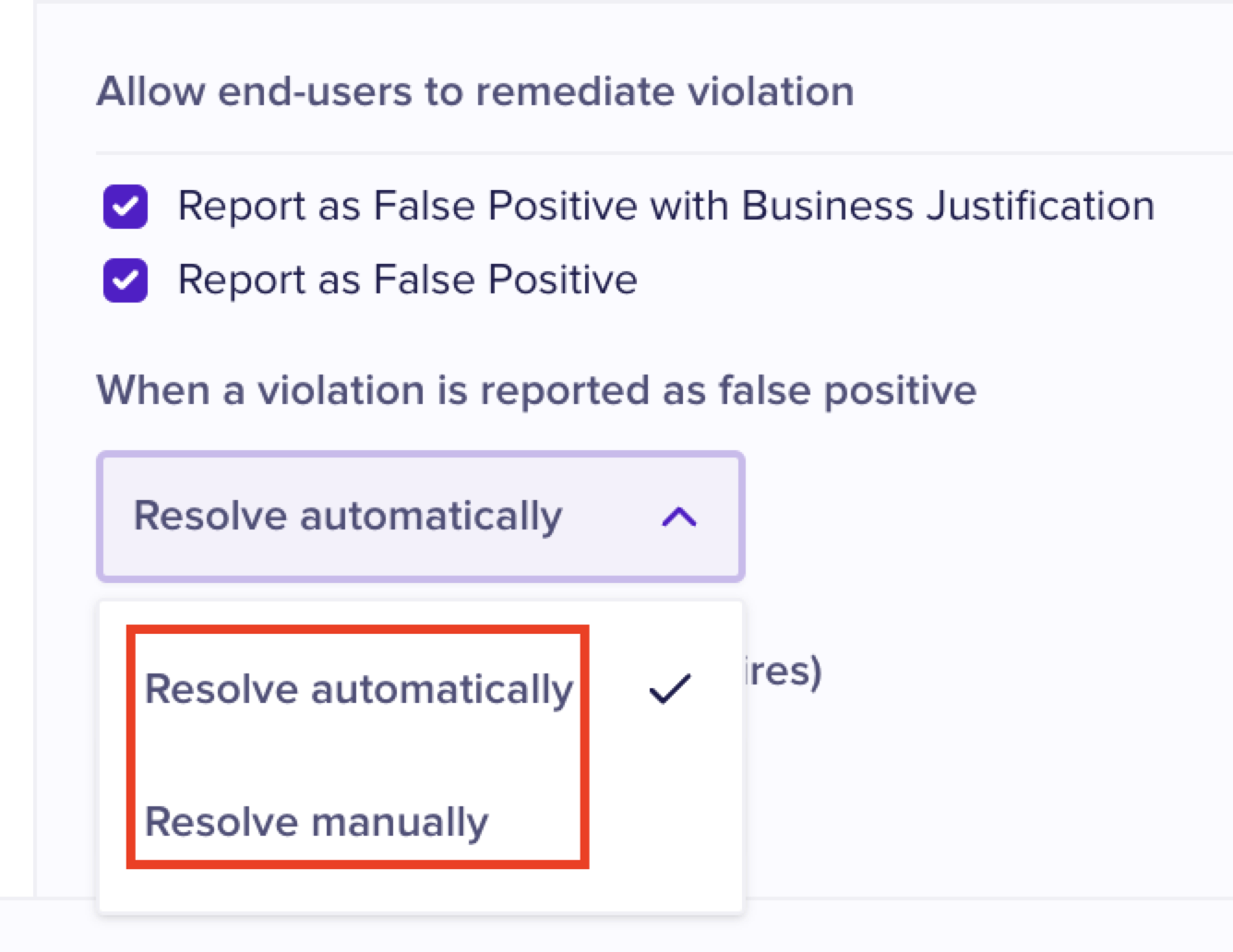
* **Report as False Positive with Business Justification**: This option allows end users to report false positive alerts and provide a business justification as to why the alert is considered to be false positive.
* **Report as False Positive**: This option allows end users to report false positive alerts.
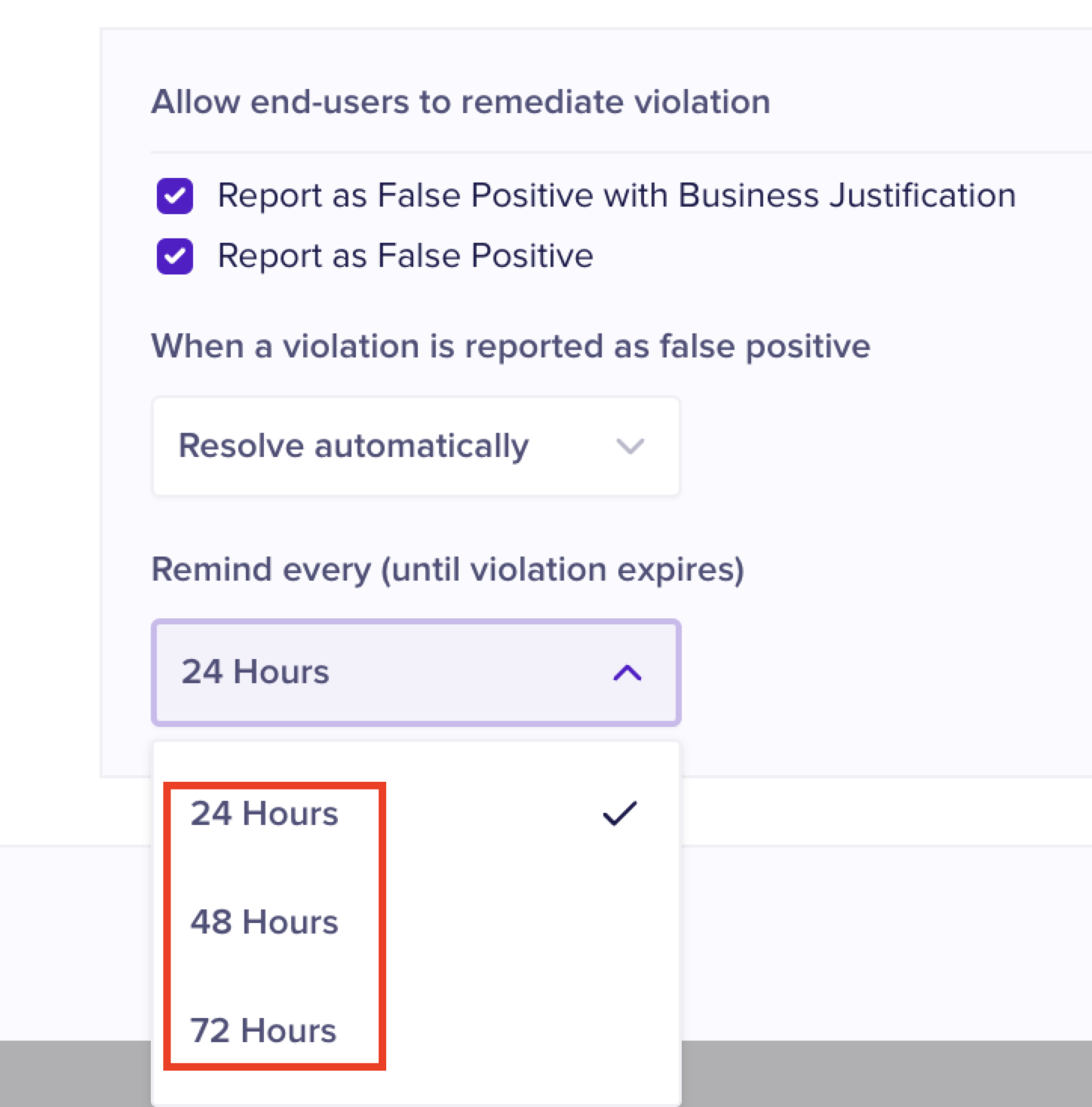
When end-users report alerts as false positive, you can choose the resolution method to be either Automatic or manual.
If end-users do not take any remediation action, you can set the frequency at which they must receive the notifications to take action.