> For the complete documentation index, see [llms.txt](https://help.nightfall.ai/llms.txt). Markdown versions of documentation pages are available by appending `.md` to page URLs; this page is available as [Markdown](https://help.nightfall.ai/detection_platform/custom_detectors/create-an-entity-detector-using-a-prompt.md).
# Create an Entity Detector using a Prompt
⭐ Define a detector to detect custom sensitive entities using natural language instead of regex
#### Getting Started
A prompt-based entity detector allows you to define a sensitive entity using natural language. Instead of relying on fixed formats or patterns (like regex), Nightfall scans your data and flags text that **matches the meaning and intent** of your description.
{% file src="/files/Qid0LiEI8RiocS2O4ZhZ" %}
Prompt-based entity detectors are best for:
* Proprietary or organization-specific identifiers
* Sensitive business concepts that don’t follow a strict pattern
* Evolving formats that are difficult to maintain using regex
* Rapid iteration during onboarding or early detection tuning
{% hint style="info" %}
Important Note: The detector supports scanning Files, Attachments, and Email Bodies only. We will be adding support for message and field scanning in 2026.
{% endhint %}
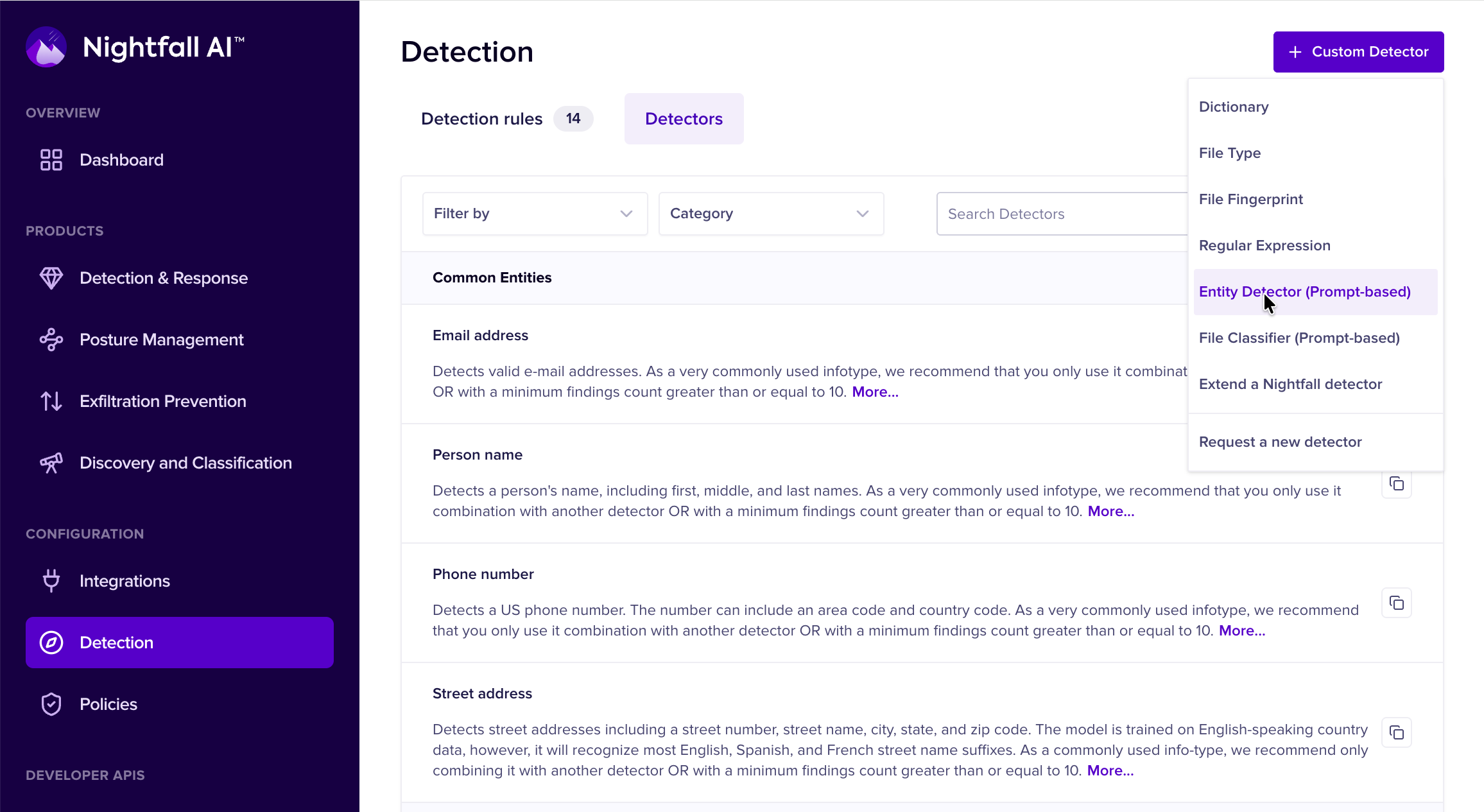
To create a prompt-based entity detector, navigate to **Detection → Detectors**, then click **+ Custom Detector** in the upper-right corner and select **Entity Detector (Prompt-Based)** from the menu.
This opens the **Prompt-Based Entity Detector** design tab, shown below.
### How Nightfall Interprets Your Detector Definition
Before creating the detector, it’s important to understand how Nightfall evaluates prompt-based definitions.
Rather than matching exact strings or patterns, Nightfall uses the information you provide to **infer what qualifies as the entity** and what does not. Accuracy depends on how clearly you describe:
* What the entity represents
* Where it typically appears
* What valid instances look like
* What similar-looking content should be ignored
To guide this process, Nightfall uses three inputs together: **Prompt**, **Examples**, and **Lookalikes**.
#### Understanding Prompts, Examples, and Lookalikes
Prompt-based entity detectors use natural language to describe what should be detected. To achieve high precision, Nightfall allows you to guide detection using three components:
* **Prompt** – what you want to detect and how it typically appears
* **Examples** – representative positive matches
* **Lookalike Phrases** – similar content that should *not* be detected
### Prompt Writing Guidelines
Your prompt should clearly describe:
* **What to detect**: Name the entity (for example, “Prescription Number” or “Customer ID”)
* **Token format**: Describe the structure at a high level (for example, “alphanumeric with hyphens”)
* **Context**: Where it typically appears (for example, patient records, invoices, or internal tools)
* **What to avoid**: Common lookalikes or non-sensitive identifiers
* **Keywords**: Terms commonly found near the entity
* **Case sensitivity**: Whether matching should be case-sensitive or case-insensitive
***
### Prompt Requirements
* Maximum length: **600 characters**
* Tokens matched must be **6–128 characters long**
* Include **at least one relevant keyword** (for example, “Prescription Number”, “PN”, “RX”)
You may est and refine your prompt using [ChatGPT](https://chat.openai.com/) or [OpenAI Playground](https://platform.openai.com/).
#### Recommended Prompt Template
You can use the following template when creating a Prompt-Based Entity Detector:
> Detect **\[entity name]** used by **\[team or process]**. These appear in **\[X document types or Y workflows]** and typically look like **\[ pattern description]**. They are often referenced near **\[keywords]**. Matching should be **\[case-sensitive or case-insensitive]**. Do not detect **\[common lookalikes]**.
**Example Prompt**
{% code overflow="wrap" %}
```
Detect Prescription Numbers associated with prescription orders used in healthcare workflows. These identifiers appear in patient care, patient billing, and health insurance contexts. Prescription Numbers typically follow the format RX-###-YYYY-##, where YYYY represents the year and must be 2020 or later. Matching should be case-insensitive. They are commonly referenced near keywords such as “Prescription Number”, “Prescription#”, “PN”, “Medication”, “Med”, or “RX”.
```
{% endcode %}
#### Examples
**Examples** provide concrete, representative samples of content that *should* be detected. These help Nightfall understand the range of valid matches.
Examples are especially useful when:
* The entity format varies
* The entity overlaps with common identifiers
* You want to reinforce edge cases that should still be detected
Examples should be **realistic but sanitized** (do not use production secrets).
**Prescription Number Example**
```
RX-000-2025-55
Prescription# rx-124-2024-23
PN: RX-983-2025-44
```
#### Lookalikes
The following resemble Prescription Numbers but **should not be detected** unless they appear in a healthcare or prescription-related context:
```
Transaction ID: RX-983-2025-44
Customer #: RX-983-2025-44
```
#### Test Prompt
Once you are satisfied with the detector definition, click **Test Prompt** to run a **prompt hygiene check**. This check validates that the information you’ve provided is sufficient for accurate classification.
During the hygiene check, Nightfall evaluates the **Prompt**, **Examples**, and **Lookalikes** together to determine whether the detector can reliably identify the entity with a **minimum precision of 75% or higher**.
If the prompt **passes the hygiene check**, the detector can be:
* Added to your **Custom Detectors** list
* Used in a **Detection Rule**
* Included in a **Policy** for monitoring, alerting, or enforcement
If the prompt **does not pass**, Nightfall will guide you to improve the prompt by:
* Adding clarifying context
* Providing additional examples
* Expanding or refining lookalikes
This ensures that prompt-based detectors are precise, reliable, and safe to deploy in production environments.
#### Sample Prompts and Test Files
{% file src="/files/ecVHGBH4iPT3JernAeMO" %}
---
# Agent Instructions
This documentation is published with GitBook. GitBook is the documentation platform designed so that both humans and AI agents can read, navigate, and reason over technical content effectively. Learn more at gitbook.com.
## Querying This Documentation
If you need additional information that is not directly available in this page, you can query the documentation by asking a question.
Perform an HTTP GET request on the following URL with the `ask` and `goal` query parameters:
```
GET https://help.nightfall.ai/detection_platform/custom_detectors/create-an-entity-detector-using-a-prompt.md?ask=&goal=
```
`ask` is the immediate question: it should be specific, self-contained, and written in natural language.
`goal` is what the user is ultimately trying to achieve, the reason they need the answer. Sharing it helps GitBook give you a better, more relevant answer. A goal is most helpful when it describes the outcome the user wants rather than restating the question. For example, with `ask=how do I create an API token`, a goal like `automate deployments from our CI pipeline` lets GitBook tailor the answer to that use case.
The response will contain a direct answer to the question and relevant excerpts and sources from the documentation.
Use this mechanism when the answer is not explicitly present in the current page, you need clarification or additional context, or you want to retrieve related documentation sections.