> For the complete documentation index, see [llms.txt](https://help.nightfall.ai/llms.txt). Markdown versions of documentation pages are available by appending `.md` to page URLs; this page is available as [Markdown](https://help.nightfall.ai/data-encryption/gmail/installing-nightfall-dlp/installing-nightfall-dlp-on-individual-devices.md).
# Installing Nightfall DLP on Individual Devices
The Nightfall DLP for browsers can be installed as an extension in the Google Chrome browser on individual devices.
## Prerequisites
* For automated encryption to work in a policy, compliance rules for [Gmail DLP](https://help.nightfall.ai/nightfall-ai/gmail-dlp/nightfall-for-gmail) must be set up in Gmail so that emails with sensitive content are encrypted.
## Installation
To install Nightfall encryption extension:
1. Navigate to the [Chrome webstore](https://chromewebstore.google.com/).
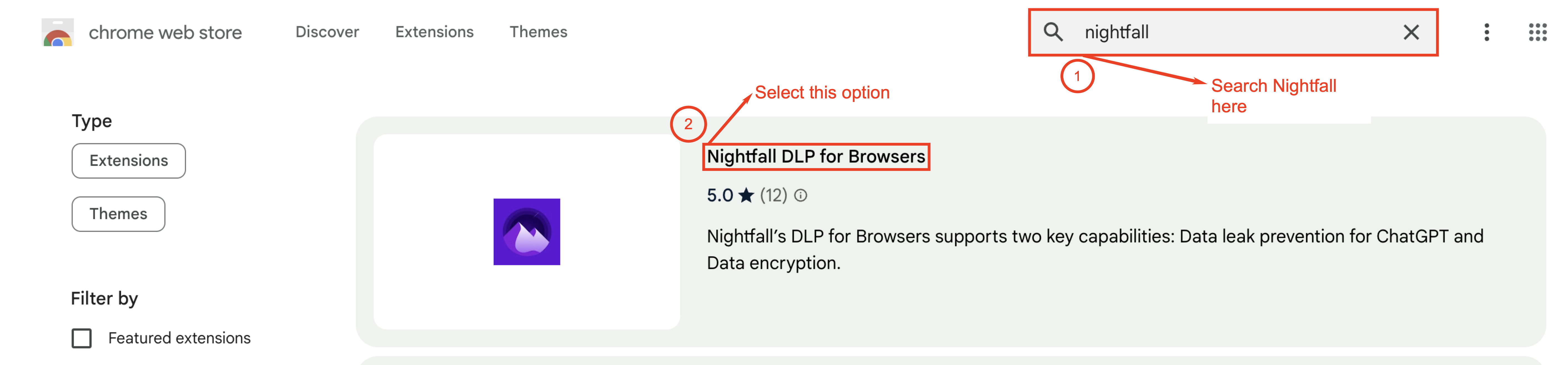
2. Search the term Nightfall in the search bar.
3. Select **Nightfall DLP for Browsers**.
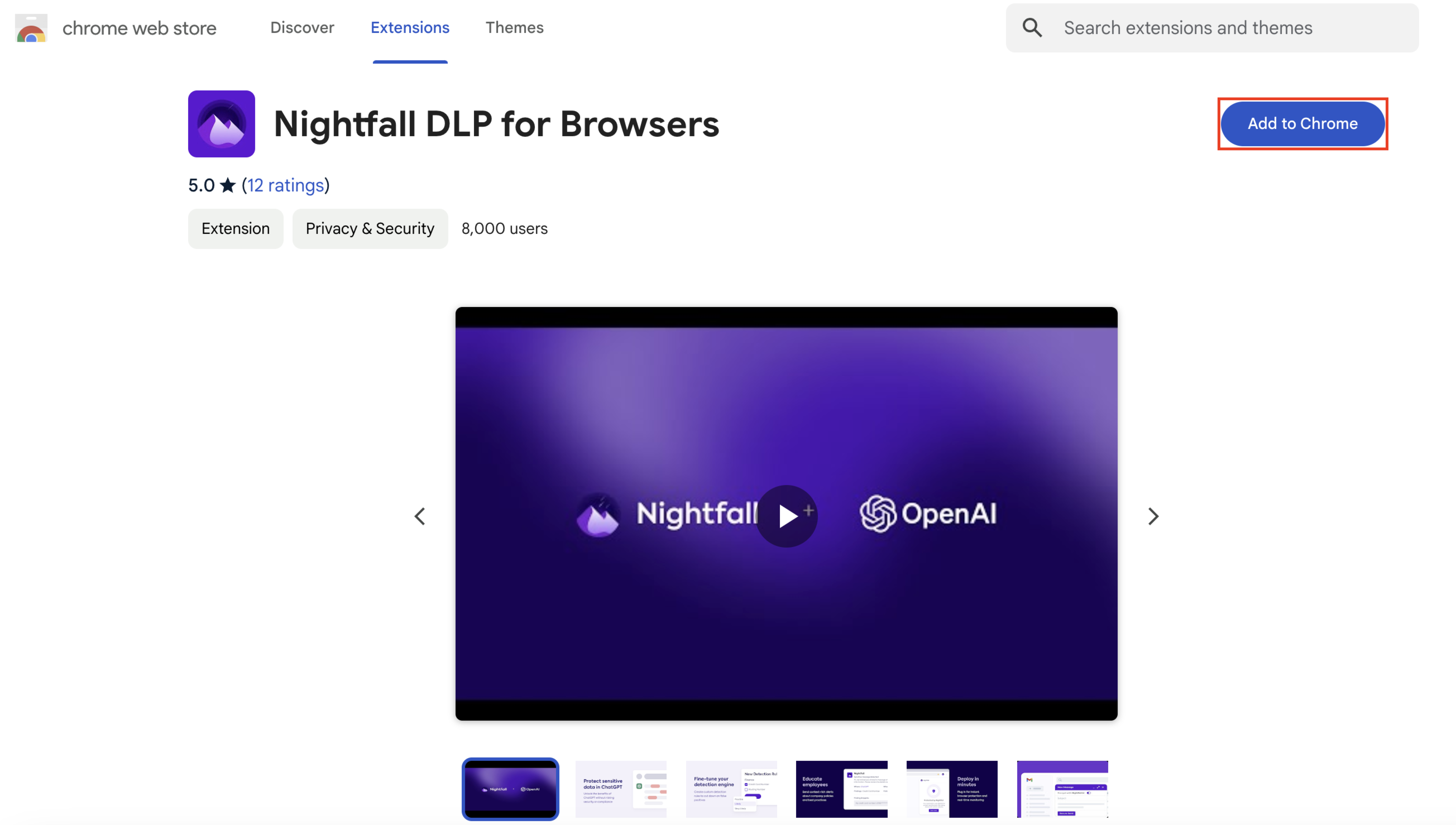
4. Click **Add to Chrome**.
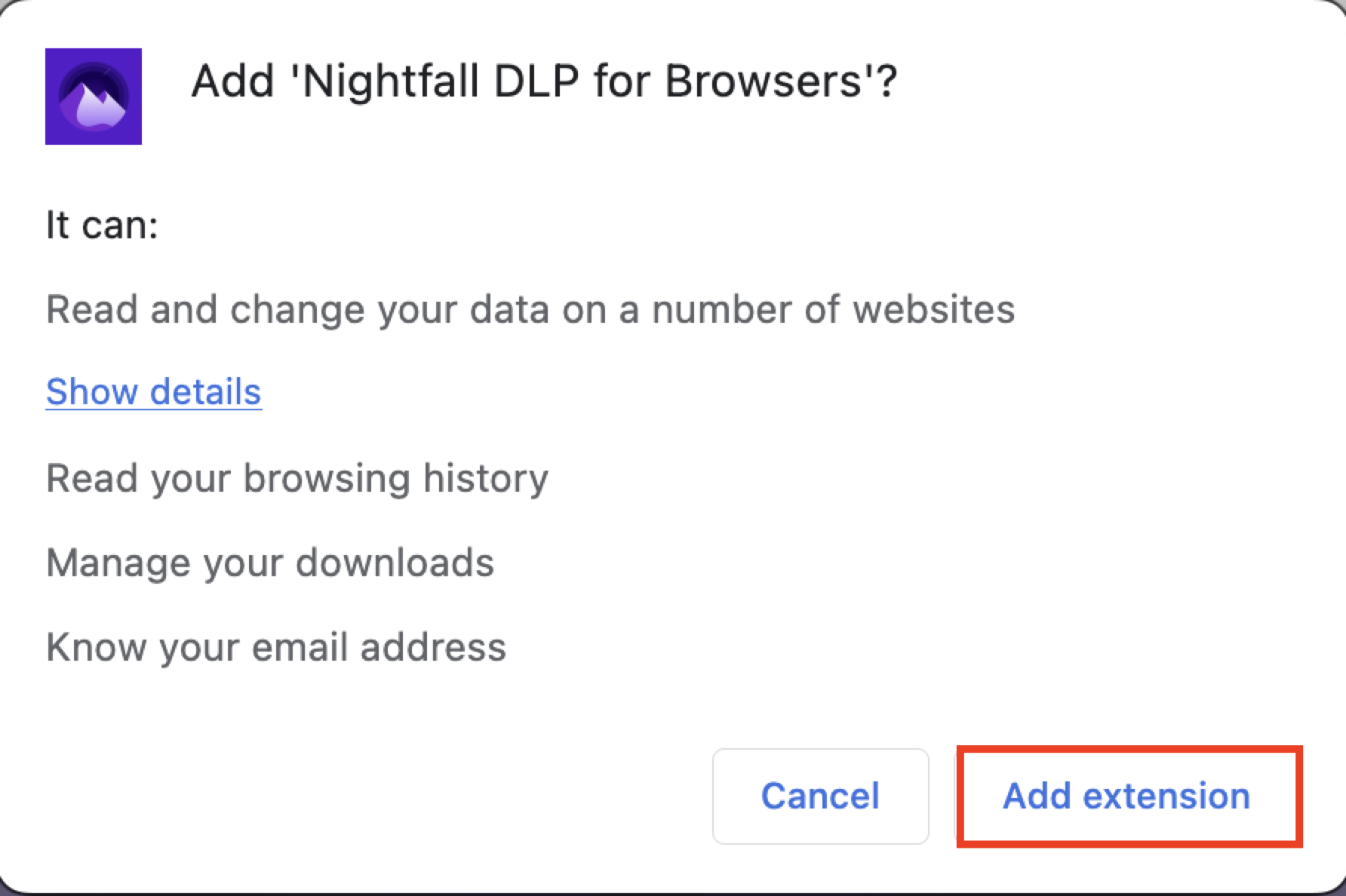
5. Click **Add extension**.
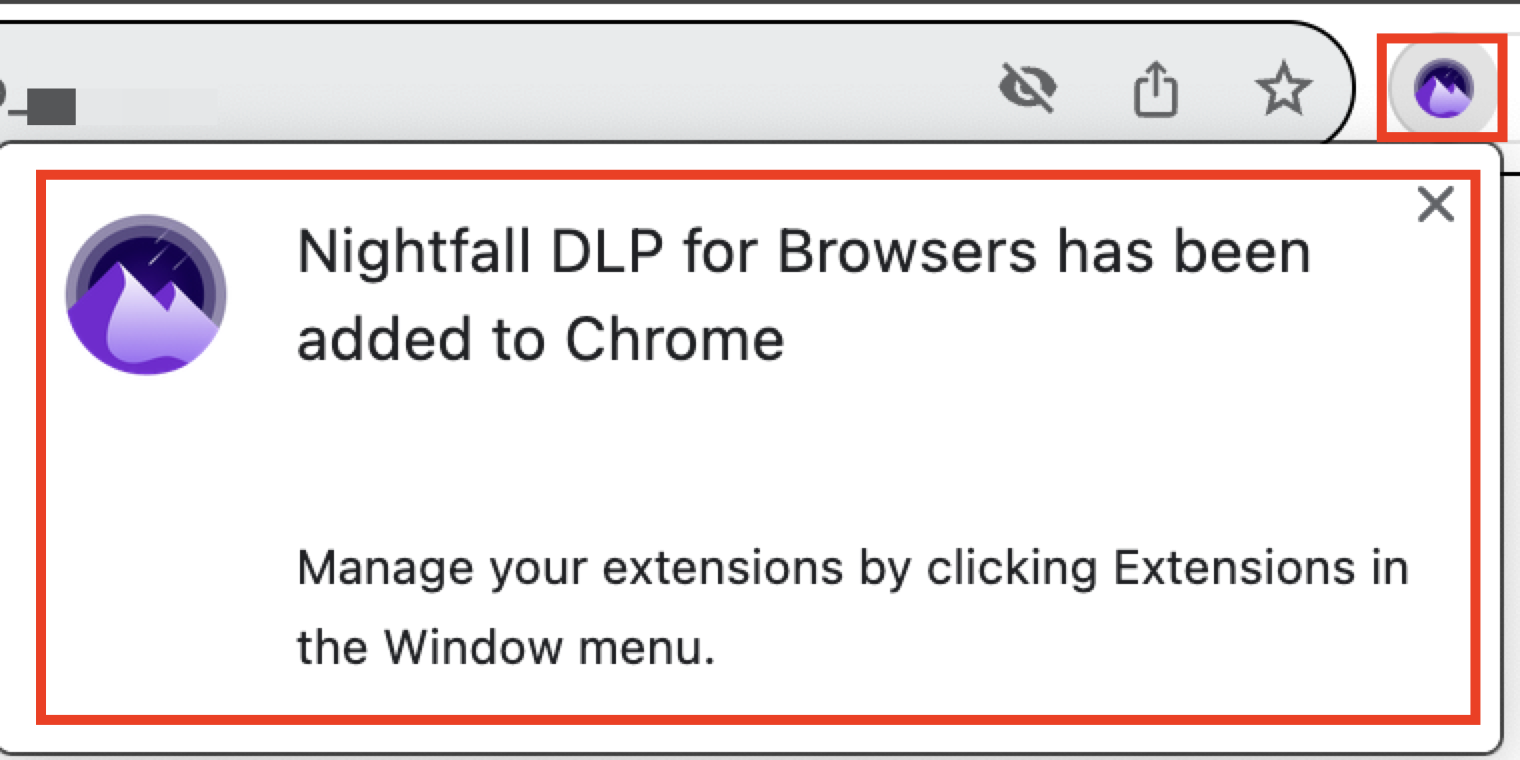
Once the installation is complete, you can view the Nightfall logo on the top right corner of your browser and a message to confirm the successful installation.
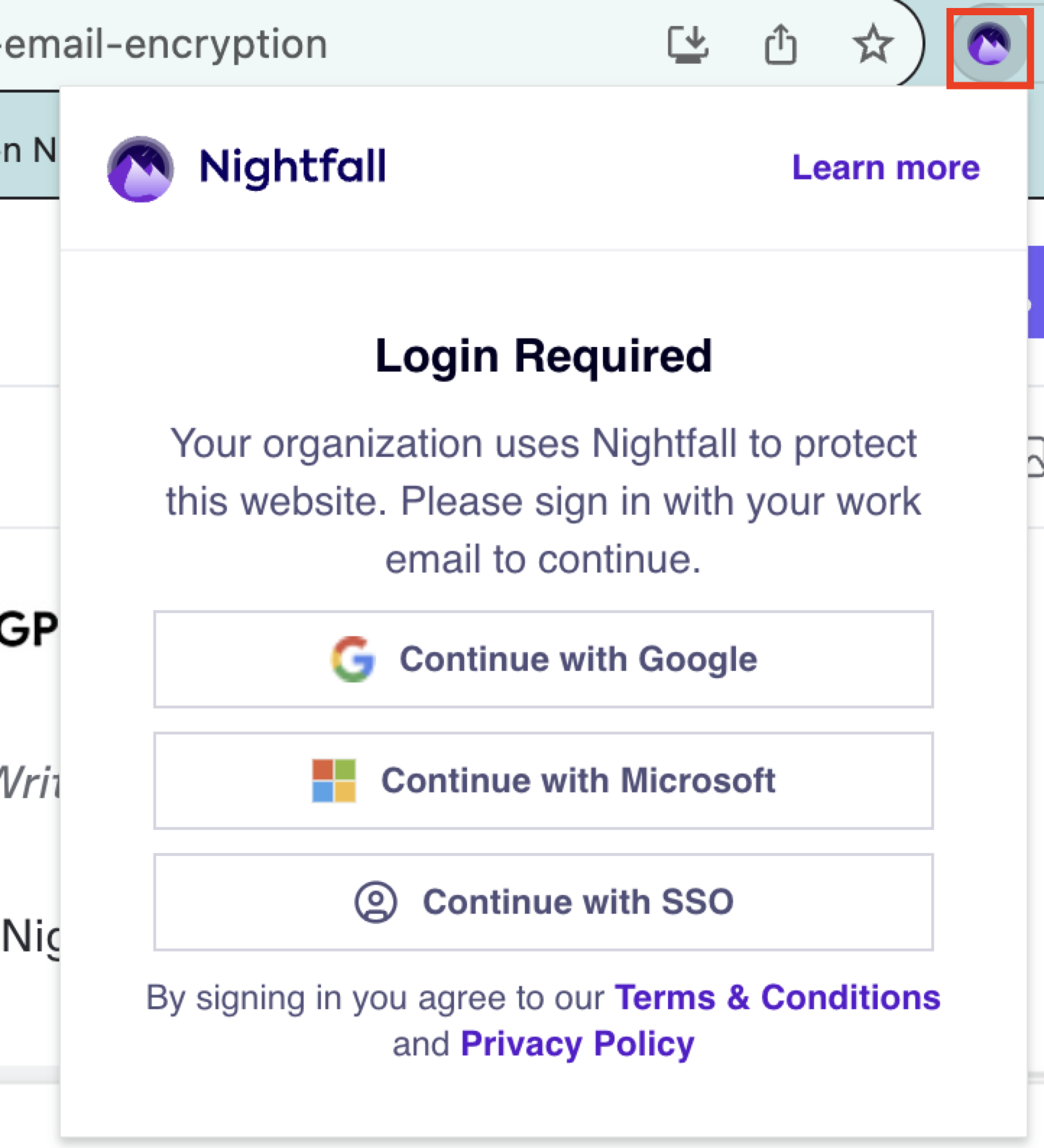
6. Click the Nightfall logo and select one of the login methods to log in to the encryption.
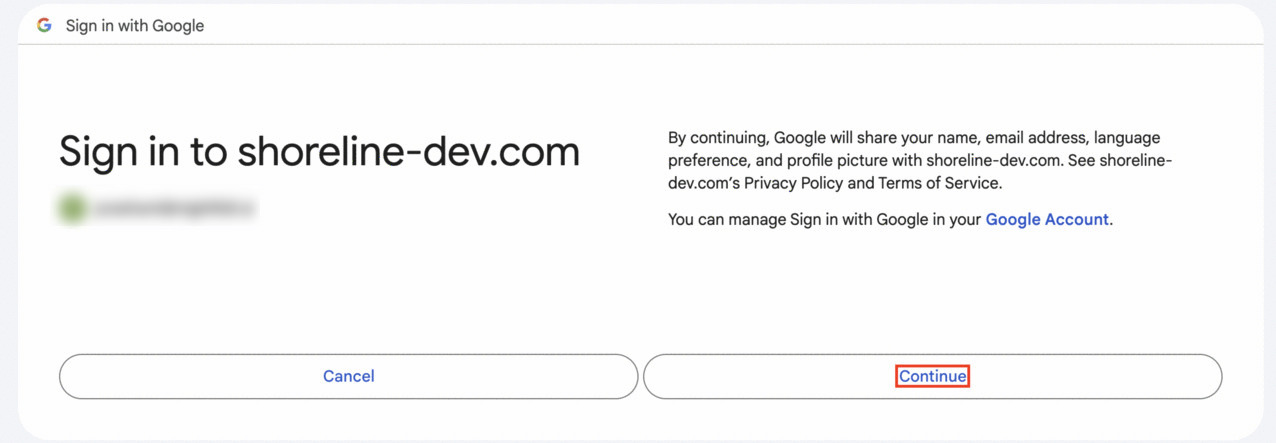
* If you select **Continue with Google**, the Google login page is displayed. You must enter your Google account credentials to login. Once you login, the Gmail permission pop up window is displayed. Click **Continue**.
* If you select **Continue with Microsoft**, the Microsoft login page is displayed. If you are already logged in to your Microsoft account you will see a pop up window asking for permission.
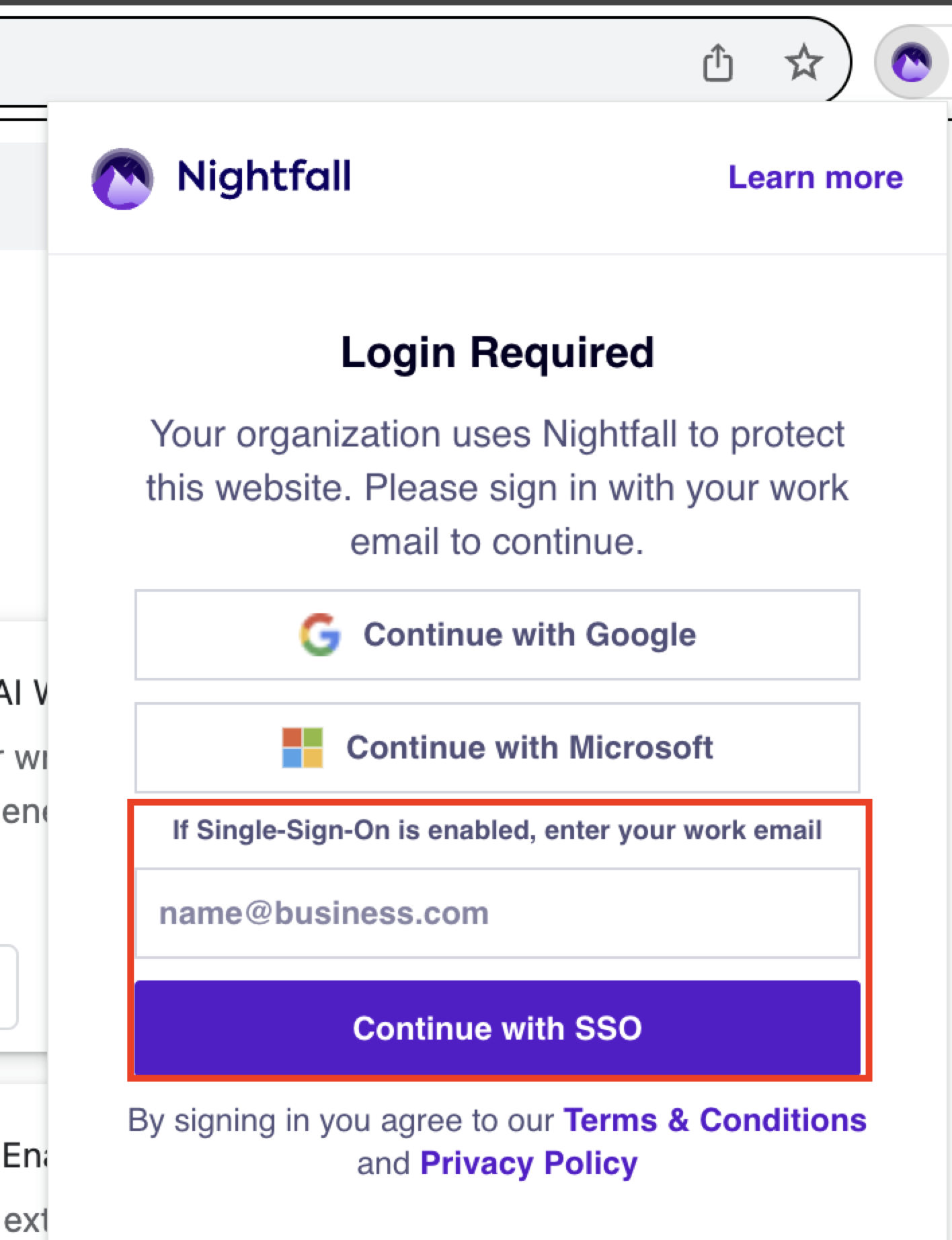
* If you select **Continue with SSO**, you must enter your organization email on which SSO is enabled.
## Enabling Data Encryption
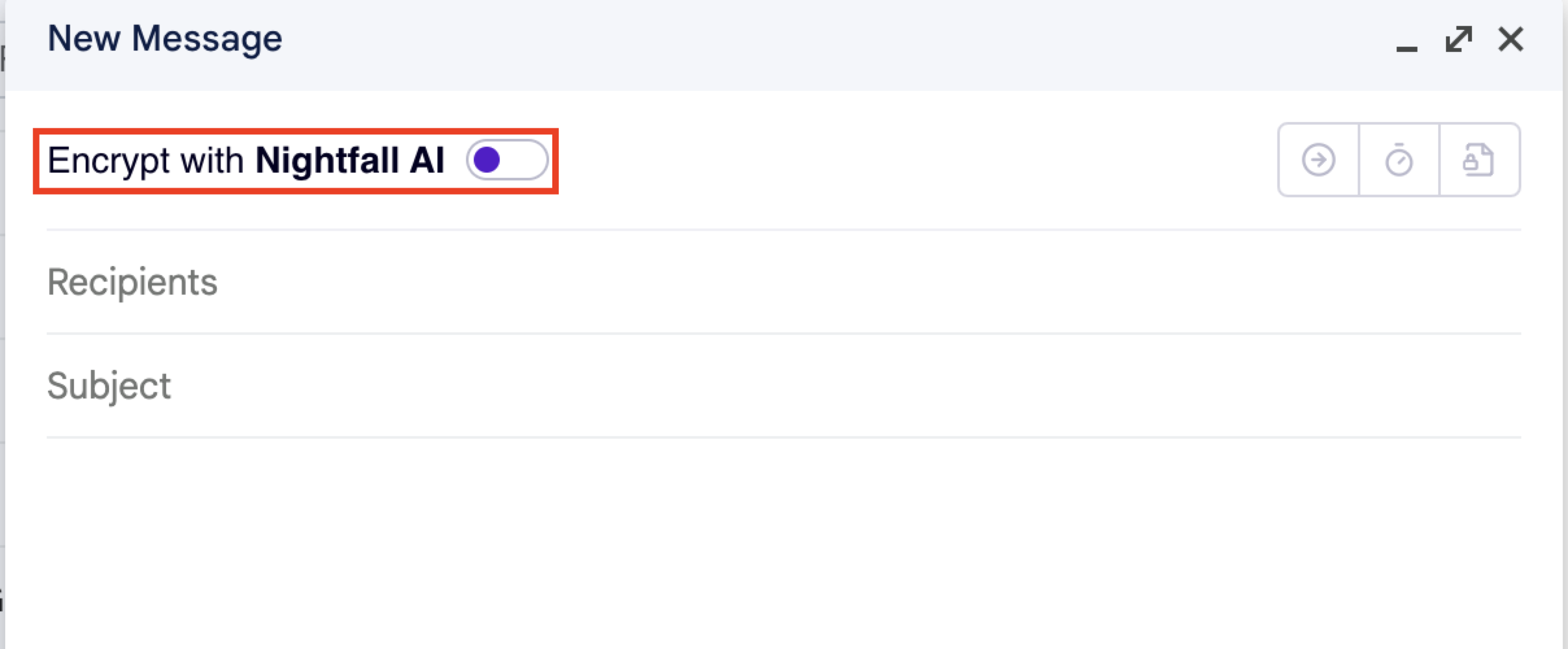
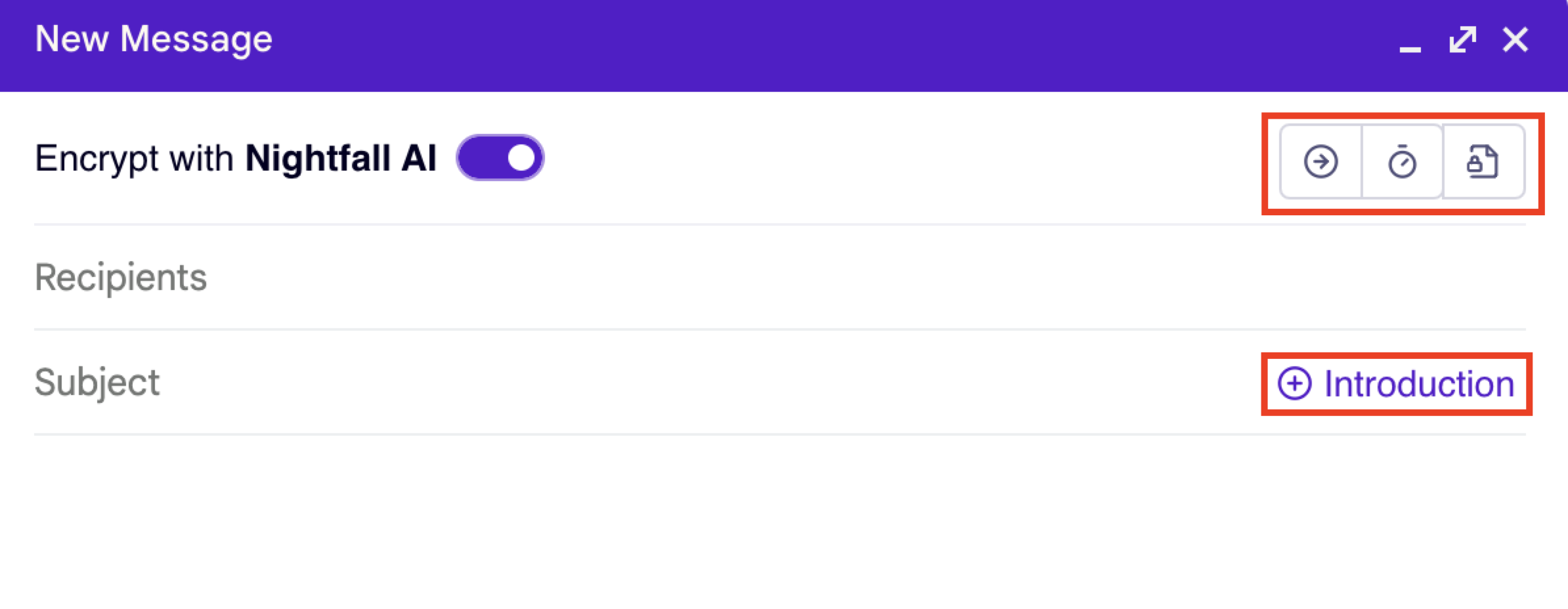
Once you complete the login process, you are navigated to gmail. In Gmail, you must compose a new email. You can now view the Nightfall email encryption toggle switch.
Once you enable the Nightfall encryption, you can see that the encryption options are now active.
You can now navigate to the [Nightfall Encryption - Sender Experience](/data-encryption/gmail/nightfall-encryption-sender-experience.md) to learn more about how to use these options.